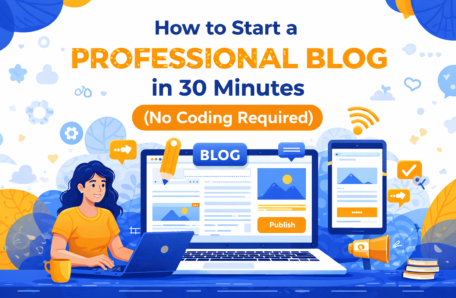
(No Coding Required)
Let me ask you something.
If I told you that in the next 30 minutes, you could have a real, professional-looking blog live on the internet — one that you own completely, that looks like you paid someone thousands of dollars to build — would you believe me?
I'm guessing probably not. Because if you're anything like most women I speak to, you've been putting off starting a blog because you're convinced it's going to be complicated, expensive, or require skills you simply don't have.
I'm here to tell you today that none of that is true.
Starting a blog in 2026 is genuinely one of the most accessible things you can do online. The tools available today have removed almost every technical barrier that existed even five years ago. And I'm going to walk you through every single step — with no jargon, no assumptions, and no steps skipped.
By the time you finish this post, you will have:
✅ A registered domain name (your address on the internet)
✅ Reliable hosting set up (the "land" your blog sits on)
✅ WordPress installed (the "frame" of your blog)
✅ A professional theme applied (the "interior design")
✅ Your first page live and ready for readers
Let's get started.
Quick Navigation:
- What You Need Before You Begin
- Step 1: Choose Your Blog Topic
- Step 2: Pick Your Domain Name
- Step 3: Set Up Your Hosting
- Step 4: Install WordPress
- Step 5: Choose and Install Your Theme
- Step 6: Set Up Your Essential Pages
- Step 7: Write and Publish Your First Post
- Your Next Steps
What You Need Before You Begin
Before we dive into the steps, let's make sure you have everything ready. The good news is that the list is very short.
What you need:
- A computer or laptop (a tablet will work in a pinch, but a computer is easier)
- A reliable internet connection
- Approximately $50–$100 for your first year of hosting and your domain name
- 30–45 minutes of uninterrupted time
- A cup of tea or coffee ☕ (optional but highly recommended)
What you do NOT need:
- Any coding knowledge whatsoever
- A graphic design background
- Expensive software
- A professional camera or studio
- Anyone's permission
That's it. If you have those five things on the first list, you are ready to begin.
Step 1: Choose Your Blog Topic
[Estimated time: 5 minutes]
Before you register a domain name or set up hosting, you need to know what your blog is going to be about. This is the most important decision you'll make — and it's also the one that trips most beginners up.
Here's the good news: you don't need to have everything figured out. You just need a clear enough direction to get started.
How to Choose Your Topic:
Ask yourself these three questions:
- What do I know a lot about? Think about your career, your hobbies, your life experiences, and the problems you've solved over the years.
- What do people regularly ask me for advice about? If your friends and family come to you for guidance on a particular topic — cooking, finances, health, relationships, gardening, travel — that's a strong signal.
- Is there an audience searching for this online? A quick Google search of your topic idea will tell you a lot. If you see other blogs, YouTube videos, and articles on the subject, that's a good sign — it means there's an audience.
Popular Blog Niches for Women Over 50:
- Personal finance and retirement planning
- Health and wellness after 50
- Travel for empty nesters
- Recipes and home cooking
- Gardening and homesteading
- Online business and working from home
- Fashion and style for mature women
- Grandparenting and family life
- Faith and personal development
- Crafts, DIY, and creative hobbies
One Important Rule: Choose a topic you can write about consistently for at least two years. Passion sustains you when the results are slow to come.
💡 Pro Tip: You don't need to niche down to an impossibly small topic right away. "Health and wellness for women over 50" is a perfectly good starting point. You can narrow your focus as you learn more about your audience.
Step 2: Pick Your Domain Name
[Estimated time: 5 minutes]
Your domain name is your address on the internet. It's what people type into their browser to find you — for example, www.YourBlogName.com.
Choosing a good domain name is simpler than most people make it. Here are the rules I recommend following:
The Domain Name Rules:
✅ Keep it short — ideally under 15 characters. Shorter names are easier to remember and easier to type.
✅ Make it easy to spell — if you have to spell it out every time you say it, it's too complicated.
✅ Use .com if possible — it's the most trusted and most recognized extension. If your preferred .com is taken, .co or .net are acceptable alternatives.
✅ Avoid numbers and hyphens — they create confusion when spoken aloud.
✅ Make it relevant to your topic — your domain name should give visitors a sense of what your blog is about.
Domain Name Ideas to Inspire You:
- YourNameBlogs.com (personal brand — great for building trust)
- SimpleLivingAfter50.com (topic-based)
- TheWiseWomanOnline.com (personality-based)
- FiftyAndThriving.com (age and attitude-based)
- YourNameOnline.com (simple personal brand)
Where to Register Your Domain:
I recommend Namecheap for domain registration. It's straightforward, affordable (usually around $10–$15 per year), and doesn't bombard you with aggressive upsells the way some other registrars do.
💡 Pro Tip: Many hosting providers (including the one I recommend below) will give you a free domain name for your first year when you sign up for hosting. So hold off on purchasing your domain separately until you've read Step 3.
Step 3: Set Up Your Hosting
[Estimated time: 10 minutes]
If your domain name is your address, then your hosting is the land your blog is built on. It's the service that stores all of your blog's files and makes them accessible to anyone who visits your site.
Choosing the right hosting provider is one of the most important decisions you'll make — because poor hosting leads to a slow, unreliable website, which drives readers away.
The Hosting Provider I Recommend: SiteGround
After testing several hosting providers, I recommend SiteGround for women who are new to blogging. Here's why:
- Their customer support is available 24 hours a day, 7 days a week via live chat — meaning if you get stuck at any point, a real human being is available to help you immediately.
- Their interface is clean, intuitive, and designed for non-technical users.
- They offer a free SSL certificate (the little padlock icon that makes your site look trustworthy and secure).
- Their servers are fast and reliable, which matters for your Google ranking.
- They offer a free domain name for your first year.
How to Set Up Your SiteGround Hosting:
1. Go to [SiteGround.com] (affiliate link)
2. Click "Get Started" on the WordPress Hosting page.
3. Choose the StartUp Plan — this is perfectly sufficient for a new blog and is the most affordable option.
4. On the next screen, you'll be asked about your domain:
- If you don't have one yet, select "Register a New Domain" and type in your chosen name.
- If you already registered one elsewhere, select "I Already Have a Domain."
5. Fill in your account details and choose your billing period. I recommend starting with 12 months — it gives you enough time to build momentum without a huge upfront commitment.
6. Complete your purchase.
Congratulations — you now own a piece of the internet. 🎉
💡 Pro Tip: Take a screenshot of your login details and save them somewhere safe. You'll need your SiteGround username and password in the next step.
Step 4: Install WordPress
[Estimated time: 3 minutes]
WordPress is the platform that powers your blog. Think of it as the "frame" of your house — the structure that everything else is built on. It's free, it's used by over 40% of all websites on the internet, and it's genuinely beginner-friendly once you know your way around it.
The good news is that SiteGround makes installing WordPress almost effortless.
How to Install WordPress via SiteGround:
1. Log into your SiteGround account at my.siteground.com
2. Go to your cPanel (your hosting control panel) — you'll find a link to this in your account dashboard.
3. Scroll down to find the WordPress icon under the "Autoinstallers" section and click it.
4. Click "Install Now."
5. Fill in the basic details:
- Site Name: Your blog name
- Site Description: A one-sentence description of what your blog is about
- Admin Username: Choose something memorable (not "admin" — that's a security risk)
- Admin Password: Choose a strong password and save it somewhere safe
6. Click "Install" and wait approximately 60 seconds.
7. Once complete, you'll receive a link to your new WordPress dashboard. Click it, log in with your new credentials, and take a moment to appreciate what you've just done.
You have a blog. It's live. It's real. And it's yours.
Step 5: Choose and Install Your Theme
[Estimated time: 5 minutes]
Right now, your blog looks very plain — and that's completely normal. The "theme" is what gives your blog its visual personality. Think of it as the interior design of your new home.
The good news is that you don't need to hire a designer or spend hundreds of dollars. There are beautiful, professional themes available for free.
The Theme I Recommend: Kadence
For beginner bloggers, I recommend the Kadence theme. Here's why:
- It's free (with a premium upgrade available if you want it later)
- It's drag-and-drop — meaning you can change colors, fonts, and layouts without touching a single line of code
- It loads fast, which is important for your Google ranking
- It looks professional straight out of the box
- It's used by thousands of bloggers worldwide, so there's a huge community of support available
How to Install the Kadence Theme:
1. From your WordPress dashboard, go to Appearance → Themes
2. Click "Add New"
3. In the search bar, type "Kadence"
4. When it appears, click "Install" and then "Activate"
5. You'll now see a prompt to install the Kadence Starter Templates — click yes. This gives you access to dozens of pre-built, beautiful blog designs that you can import with one click.
6. Browse the starter templates, choose one that feels like "you," and click "Import."
Within about 60 seconds, your blog will transform from a blank page into a beautiful, professional-looking website.
💡 Pro Tip: Don't spend hours agonizing over which template to choose. Pick one that feels close to what you want — you can always change colors and fonts later. Getting your blog live is more important than getting it perfect.
Step 6: Set Up Your Essential Pages
[Estimated time: 5 minutes]
Before you write your first blog post, there are three pages every professional blog needs. These pages build trust with your readers and are also required by law in many countries.
Page 1: About Me
This is the most important page on your entire blog. It's where Susan — your ideal reader — comes to decide whether she trusts you enough to keep reading.
Your About Me page should include:
- Who you are and why you started this blog
- Who you help and how
- A warm, genuine photo of yourself (not a stock photo — you)
- A call to action to join your email list
Page 2: Contact
A simple contact form so readers can reach you. Most WordPress themes include a basic contact form, or you can install the free WPForms Lite plugin to create one in minutes.
Page 3: Privacy Policy
This is a legal requirement if you collect any data from visitors — including email addresses. You can generate a free, basic privacy policy at PrivacyPolicyGenerator.info and paste it into a new page on your blog.
How to Create a New Page in WordPress:
1. From your dashboard, go to Pages → Add New
2. Give your page a title (e.g., "About Me")
3. Write your content in the editor
4. Click "Publish"
5. Repeat for each page
Step 7: Write and Publish Your First Post
[Estimated time: 5 minutes to set up — longer to write the actual content]
You've built the house. Now it's time to move in.
Your first blog post doesn't need to be your best work. It doesn't need to be perfectly optimized for Google. It just needs to exist — because a published imperfect post beats an unpublished perfect one every single time.
What Should Your First Post Be About?
I recommend one of two options:
Option A: Your "Why" Post
Tell your readers why you started this blog, who you are, and what they can expect from you. This is the most personal and trust-building post you can write — and it's also the easiest, because you're simply telling your own story.
Option B: Your First "How-To" Post
Jump straight into helpful content by writing a beginner's guide to something within your niche. This signals to Google — and to your readers — that you are here to provide value.
How to Write and Publish a Post in WordPress:
1. From your dashboard, go to Posts → Add New
2. Give your post a title
3. Write your content in the editor — use the "+" button to add paragraphs, headings, images, and lists
4. On the right-hand side, add a Category for your post (e.g., "Getting Started" or "Blogging Tips")
5. Add a Featured Image — this is the main image that appears at the top of your post and in social media previews. Use a free image from Unsplash.com or Pexels.com if you don't have your own.
6. Click "Publish"
Your first post is live. Take a moment to celebrate — because this is genuinely a big deal. 🎉
Your Next Steps
You've done something today that most people only talk about doing. You have a real, professional blog — live on the internet, owned entirely by you.
Here's what to focus on in the coming days and weeks:
This Week:
- Write your About Me page if you haven't already
- Share your new blog with at least five people you trust and ask for honest feedback
- Set up your email list (I'll walk you through this in next week's post)
Next Week:
- Write your second blog post
- Set up your first affiliate links (I'll show you exactly how in an upcoming post)
- Start thinking about your first YouTube video
This Month:
- Aim for four published blog posts
- Set up your social media profiles (Facebook and Pinterest are the best starting points for this audience)
- Download the free Simple Start Roadmap if you haven't already — it maps out your entire first 30 days in detail
"The best time to start a blog was five years ago. The second best time is today. You've already taken the first step — now keep going."
📥 [Download Your Free Simple Start Roadmap — Click Here]
📺 [Watch the Companion YouTube Video — Click Here]
💬 Drop a comment below: What is your blog going to be about? I'd love to be one of the first to know!
Found this helpful? Share it with a friend who's been thinking about starting a blog. And don't forget to subscribe to the newsletter — every week I send out a plain-English guide designed specifically for women like you.