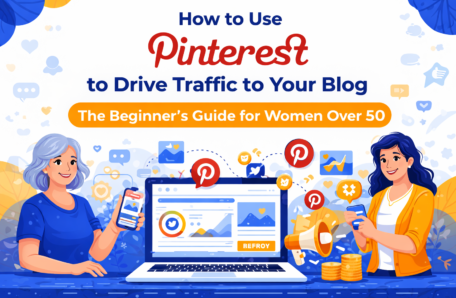
The Beginner's Guide for Women Over 50
If I told you there was a social media platform where:
- Your content keeps working for you for months or even years after you post it
- The majority of users are women between the ages of 35 and 65
- People come specifically to find ideas, solutions, and products to buy
- You don't need a large following to get significant traffic
- And it sends more referral traffic to blogs than Facebook, Twitter, and Instagram combined
You'd want to know about it, right?
That platform is Pinterest.
And if you're a woman over 50 writing a blog about any topic that resonates with women — online business, health and wellness, home and garden, recipes, travel, personal finance, faith, crafts, or style — Pinterest is quite possibly the single most powerful traffic tool available to you.
I know what you might be thinking. "Pinterest is just a place to save recipes and home décor ideas."
It used to be. But Pinterest has evolved into something far more powerful — a visual search engine used by hundreds of millions of people every month to find answers, inspiration, and solutions to their problems.
And when those people search for something related to your blog topic, your content can appear in front of them — even if you only started your blog last week.
This post is going to show you exactly how to make that happen.
By the end of this post, you will know:
✅ Why Pinterest works differently from every other social media platform
✅ How to set up a professional Pinterest business account
✅ How to create pins that actually get clicked
✅ How to build a board strategy that attracts your ideal reader
✅ How to use Pinterest consistently without it taking over your life
✅ The simple weekly routine that keeps your Pinterest growing on autopilot
Let's get started.
Quick Navigation:
- Why Pinterest is Different From Every Other Platform
- Setting Up Your Pinterest Business Account
- Understanding How Pinterest Actually Works
- Creating Your Board Strategy
- How to Create Pins That Get Clicked
- Your Simple Weekly Pinterest Routine
- Pinterest Mistakes to Avoid
- How Long Before You See Results?
- Your Action Plan This Week
Why Pinterest is Different From Every Other Platform
Before we get into the practical steps, I want to make sure you understand why Pinterest works so differently from Facebook, Instagram, or TikTok — because this understanding will completely change how you approach it.
Pinterest is not a social media platform. It is a search engine.
Think about how you use Google. You type in a question or a topic, and Google shows you a list of results — articles, websites, and videos that match what you searched for.
Pinterest works in exactly the same way — except instead of showing you a list of text links, it shows you a grid of images. Each image is called a pin, and each pin links back to a website, blog post, or product page.
When someone searches for "how to start a blog over 50" on Pinterest, they see a grid of pins related to that topic. If your pin appears in those results and they click it, they land on your blog.
This changes everything about how you think about Pinterest — for three important reasons:
Reason 1: Your content has a much longer lifespan.
On Instagram or Facebook, a post is essentially dead within 24–48 hours. On Pinterest, a pin can continue appearing in search results — and driving traffic to your blog — for months or even years after you created it. Pinterest is one of the few platforms where your old content keeps working for you long after you've moved on.
Reason 2: You don't need a large following.
On Instagram, your posts are primarily shown to your existing followers. On Pinterest, your pins are shown to anyone searching for related topics — regardless of whether they follow you. This means a brand new account with zero followers can still reach thousands of people if the content is relevant and well-optimized.
Reason 3: Pinterest users are in a buying mindset.
People come to Pinterest specifically to find ideas, solutions, and products. They are actively looking for answers — which means they are far more likely to click through to your blog, sign up for your email list, and purchase your recommendations than a passive social media scroller.
For bloggers — particularly those writing for women over 50 — Pinterest is not optional. It is essential.
Setting Up Your Pinterest Business Account
If you already have a personal Pinterest account, you can convert it to a business account. If you're starting fresh, you'll create a new business account from scratch. Either way, the process takes about ten minutes.
Why a Business Account?
A Pinterest business account gives you access to:
- Pinterest Analytics — so you can see which pins are driving the most traffic to your blog
- Rich Pins — a feature that automatically pulls information from your blog posts into your pins, making them more informative and more clickable
- Pinterest Ads — if you ever want to promote your content (not necessary for beginners)
- A more professional appearance that builds trust with your audience
How to Set Up Your Pinterest Business Account:
1. Go to Pinterest.com/business/create and click "Create a business account"
2. Enter your email address, create a password, and click "Create account"
3. Fill in your profile details:
- Business name: Use your blog name or your personal name — whichever you use as your brand
- Username: Keep this consistent with your other social media handles if possible
- Profile photo: Use the same professional photo you use on your blog and other platforms — consistency builds recognition
- About section: Write a clear, keyword-rich description of who you are and who you help. Example: "Helping women over 50 build a profitable online business from home — one simple step at a time."
- Website: Enter your blog URL
4. Claim your website:
- Go to Settings → Claimed Accounts
- Click "Claim" next to your website
- Follow the instructions to add a small piece of code to your WordPress blog (your theme or a plugin like Yoast SEO makes this straightforward)
- Once claimed, all pins from your website will be attributed to your account automatically
5. Enable Rich Pins:
- Go to developers.pinterest.com/tools/url-debugger
- Enter the URL of one of your blog posts and click "Debug"
- If your blog is set up correctly, Pinterest will automatically enable Rich Pins for your account within 24 hours
💡 Pro Tip: Your Pinterest profile description is searchable — meaning Pinterest uses the words in your description to decide when to show your profile in search results. Include the keywords your ideal reader would search for, such as "women over 50," "online business," "blogging for beginners," or whatever is most relevant to your niche.
Understanding How Pinterest Actually Works
Before you start creating pins, it helps to understand the mechanics of how Pinterest decides which pins to show — and to whom.
Pinterest uses an algorithm — called the Smart Feed — to decide which pins appear in each user's home feed and in search results. The algorithm considers several factors:
1. Relevance
Pinterest reads the text in your pin title, pin description, and the blog post it links to. The more clearly your pin communicates what it's about — using the words your ideal reader would actually search for — the more likely it is to appear in relevant search results.
2. Quality
Pinterest favors pins that are visually appealing, properly sized, and link to high-quality, fast-loading websites. A blurry, poorly designed pin will underperform even if the content behind it is excellent.
3. Engagement
Pins that get saved, clicked, and commented on are shown to more people. This creates a virtuous cycle — the better your pin performs, the more people see it, which leads to even better performance.
4. Freshness
Pinterest rewards accounts that pin consistently and regularly. An account that pins five to ten times per day, every day, will consistently outperform one that pins fifty times in a single day and then goes quiet for a week.
5. Domain Quality
Pinterest also considers the overall quality of the website a pin links to. A fast, well-structured blog with good content will have its pins shown more widely than a slow, poorly maintained one.
Understanding these five factors will inform every decision you make on Pinterest — from how you design your pins to how often you post.
Creating Your Board Strategy
Pinterest boards are the folders where you organize your pins. A well-structured board strategy is the foundation of a successful Pinterest account — because your boards tell Pinterest (and your followers) exactly what your account is about.
How Many Boards Should You Create?
For a new account, I recommend starting with 10–15 boards. This gives Pinterest enough information to understand your niche without overwhelming you at the outset.
What Should Your Boards Be About?
Each board should represent a specific topic or subtopic within your niche. Think about the different categories of content you plan to create — and create a board for each one.
Example Board Strategy for a "Women Over 50 Online Business" Blog:
| Board Name | What to Pin There |
|---|---|
| Start a Blog Over 50 | Your blog setup posts + relevant content from other bloggers |
| Affiliate Marketing for Beginners | Your affiliate marketing posts + relevant content |
| Email Marketing Tips | Your email list posts + relevant content |
| Pinterest for Bloggers | Your Pinterest posts + relevant content |
| Make Money Online for Women | Broader income-related content |
| Work From Home Ideas | Remote work and home office content |
| Online Business Tools | Tool reviews and recommendations |
| Blogging Tips for Beginners | General blogging advice |
| Women Over 50 Inspiration | Motivational and lifestyle content for your audience |
| [Your Name]'s Blog | A board exclusively for your own blog posts |
The Golden Rule of Boards:
Always create one board that is exclusively for your own content — named after your blog. This makes it easy for your followers to find all of your posts in one place, and it signals to Pinterest that you are a content creator, not just a curator.
How to Create a Board:
1. From your Pinterest profile, click the "+" button and select "Board"
2. Give your board a clear, keyword-rich name (e.g., "Blogging Tips for Beginners" rather than "My Blog Stuff")
3. Write a board description — two to three sentences that describe what the board is about, using relevant keywords
4. Set the board to Public (private boards don't appear in search results)
5. Click "Create"
💡 Pro Tip: The name of your board is one of the most important factors in whether it appears in Pinterest search results. Use the exact words your ideal reader would type into the search bar — not creative or clever names that nobody would think to search for.
How to Create Pins That Get Clicked
Your pin is the first thing a Pinterest user sees. It has approximately one second to catch their attention as they scroll through a feed of hundreds of images. If it doesn't stop them in their tracks, they'll scroll right past it — regardless of how good the content behind it is.
Here is everything you need to know about creating pins that get noticed, get clicked, and drive traffic to your blog.
The Perfect Pin: Size and Format
Pinterest recommends a 2:3 aspect ratio for standard pins — meaning the pin is taller than it is wide. The ideal dimensions are 1000 x 1500 pixels.
Why tall? Because tall pins take up more space in the Pinterest feed, making them more visible and harder to scroll past.
Create your pins in Canva — it's free, it has Pinterest pin templates built in, and you don't need any design experience to create professional-looking pins.
The Perfect Pin: Visual Design
Use high-quality images.
Pinterest is a visual platform — blurry, dark, or cluttered images will be ignored. Use bright, clear, high-quality photos. If you don't have your own photos, use free stock images from Unsplash.com or Pexels.com.
Use warm, light backgrounds.
Pins with light, warm backgrounds consistently outperform dark ones on Pinterest — particularly in niches popular with women. Think creams, whites, soft pinks, and warm neutrals.
Use large, readable text.
Most Pinterest users browse on their phones. If your text is too small to read on a mobile screen, your pin will be ignored. Use bold, clear fonts and keep your text concise.
Be consistent with your branding.
Use the same colors, fonts, and style across all of your pins. This creates a recognizable visual identity — so that over time, your followers can spot your pins instantly as they scroll through their feed.
Include your blog URL or name.
Add your website URL or blog name to the bottom of every pin. This builds brand recognition and ensures that even if someone saves your pin without clicking through, they know where it came from.
The Perfect Pin: Text Overlay
The text on your pin is arguably more important than the image behind it — because it's what tells the reader why they should click.
Your pin text should:
- State a clear benefit or promise — what will the reader get if they click?
- Include your main keyword — the words your ideal reader would search for
- Create curiosity or urgency — give them a reason to click now
Pin Text Formula:
"[Specific Result] for [Specific Audience] — Even if [Common Objection]"
Examples:
- "How to Start a Blog in 30 Minutes — Even if You're Not Tech-Savvy"
- "5 Affiliate Programs Perfect for Beginner Bloggers Over 50"
- "Why Your Email List is More Valuable Than Your Social Media Following"
- "The Simple Pinterest Strategy That Grew My Blog Traffic by 300%"
The Perfect Pin: Title and Description
When you upload a pin to Pinterest, you'll be asked for a title and a description. These are critically important — because Pinterest reads them to understand what your pin is about and decide when to show it in search results.
Pin Title:
- Keep it under 100 characters
- Include your main keyword naturally
- Make it clear and specific — not vague or clever
Pin Description:
- Write 2–3 sentences describing what the reader will find when they click
- Include your main keyword and 2–3 related keywords naturally
- End with a gentle call to action — for example, "Click to read the full guide" or "Save this for later"
- Do not stuff keywords unnaturally — write for the human reader first, Pinterest second
Example Pin Description:
"Wondering how to use Pinterest to drive traffic to your blog? This step-by-step guide for beginner bloggers shows you exactly how to set up your account, create pins that get clicked, and build a simple weekly routine that keeps your Pinterest growing — even with a brand new blog. Click to read the full guide."
Creating Multiple Pins for Each Blog Post
Here is one of the most powerful Pinterest strategies that most beginners overlook:
Create 3–5 different pins for every blog post you publish.
Each pin links to the same blog post — but uses a different image, different text overlay, or different color scheme. This gives you multiple chances to reach different segments of your audience, and allows you to test which pin designs perform best.
Over time, you'll notice patterns — certain colors, certain text styles, certain image types consistently outperform others. Use this data to refine your pin design strategy.
Your Simple Weekly Pinterest Routine
One of the biggest mistakes new Pinterest users make is treating it like Instagram — posting in bursts and then going quiet. Pinterest rewards consistency above almost everything else.
Here is a simple, sustainable weekly routine that takes approximately 60–90 minutes per week and keeps your Pinterest account growing steadily.
Monday: Create Your Pins for the Week
(30–45 minutes)
Open Canva and create 5–10 new pins for the week. These should include:
- 3–5 new pins for your most recent blog post
- 2–3 new pins for older blog posts that are performing well
- 1–2 pins for your lead magnet opt-in page
Save all pins to a folder on your computer, ready to schedule.
Tuesday–Friday: Schedule Your Pins
(5–10 minutes per day)
Use Pinterest's built-in scheduler (free) or Tailwind (a paid Pinterest scheduling tool that many serious bloggers swear by) to schedule your pins to go out at consistent intervals throughout the day.
Aim to publish 5–10 pins per day — a mix of your own content and relevant content from other bloggers in your niche.
💡 Why pin other people's content? Pinterest rewards accounts that are active, engaged members of the community — not just self-promoters. Saving relevant, high-quality content from other bloggers signals to Pinterest that your account is a valuable resource, which helps your own pins get shown more widely.
Saturday: Review Your Analytics
(10–15 minutes)
Once a week, spend a few minutes reviewing your Pinterest Analytics. Look for:
- Which pins are getting the most impressions (being seen by the most people)
- Which pins are getting the most clicks (driving the most traffic to your blog)
- Which boards are performing best
Use this information to create more of what's working and less of what isn't.
Sunday: Rest
Seriously. Pinterest is a long game. Burnout is real. Take one day completely off from all things blog and business — and come back on Monday refreshed and ready to create.
Pinterest Mistakes to Avoid
Here are the most common Pinterest mistakes I see beginner bloggers make — and how to avoid them.
Mistake 1: Using a Personal Account Instead of a Business Account
A personal account gives you no analytics, no Rich Pins, and no ability to claim your website. Switch to a business account before you do anything else.
Mistake 2: Creating Boards With Vague or Clever Names
"My Favorite Things" tells Pinterest nothing. "Blogging Tips for Women Over 50" tells Pinterest exactly what your board is about and who it's for. Always use clear, searchable board names.
Mistake 3: Pinning Inconsistently
Pinning 50 times on Monday and then nothing for two weeks will actively hurt your account. Pinterest's algorithm rewards consistency. Five pins per day, every day, will outperform 35 pins on a single day every time.
Mistake 4: Only Pinning Your Own Content
Pinterest wants to see that you're an engaged member of the community. Save relevant, high-quality content from other bloggers alongside your own — aim for roughly a 50/50 split when you're starting out.
Mistake 5: Ignoring Your Pin Descriptions
Many beginners upload a beautiful pin and leave the title and description blank. This is a significant missed opportunity. Pinterest cannot read your image — it can only read your text. A pin with no description is essentially invisible to the search algorithm.
Mistake 6: Giving Up Too Soon
Pinterest is a slow burn. Most bloggers don't see significant traffic from Pinterest until three to six months after they start — sometimes longer. The bloggers who succeed on Pinterest are the ones who show up consistently for six months before expecting results.
How Long Before You See Results?
I want to be completely honest with you about this, because unrealistic expectations are one of the main reasons bloggers give up on Pinterest too soon.
Month 1–2: You are planting seeds. Your account is new, your pins are being indexed, and Pinterest is learning what your content is about. Traffic from Pinterest will be minimal — and that is completely normal.
Month 3–4: You start to see some movement. A few pins begin to gain traction. Traffic from Pinterest starts to appear in your blog analytics. You begin to see which pin styles and topics resonate with your audience.
Month 5–6: If you've been consistent, this is often when Pinterest starts to "click." Certain pins begin to go semi-viral within your niche. Traffic increases noticeably. Your email list starts growing from Pinterest referrals.
Month 6–12: With consistent effort, Pinterest can become your primary source of blog traffic — sending hundreds or even thousands of visitors to your blog every month, from pins you created months ago.
The key word in all of the above is consistent. Pinterest rewards the bloggers who show up every week, create quality content, and trust the process — even when the results feel slow.
Your Action Plan This Week
Here is your simple, no-overwhelm plan for getting started on Pinterest this week.
Day 1: Set up your Pinterest business account and complete your profile. Claim your website.
Day 2: Create your first 10 boards using the board strategy above. Write keyword-rich descriptions for each one.
Day 3: Open Canva and create your first 5 pins — one for each of your published blog posts. Use the 1000 x 1500 pixel template.
Day 4: Upload your pins to Pinterest. Write clear, keyword-rich titles and descriptions for each one. Pin each one to your most relevant board and to your personal blog board.
Day 5: Spend 20 minutes saving high-quality content from other bloggers in your niche to your boards. Aim for 10–15 saves.
Day 6: Set up your weekly Pinterest routine — block out 60–90 minutes every Monday in your calendar for pin creation.
Day 7: Rest. You've done a lot this week. Come back on Monday ready to create your next batch of pins.
"Pinterest is not about going viral overnight. It's about planting hundreds of small seeds — each one a pin that could be found by the right person at exactly the right moment. The bloggers who win on Pinterest are the ones who keep planting, week after week, long after most people have given up."
📥 [Download Your Free Simple Start Roadmap — Click Here]
📺 [Watch the Companion YouTube Video — Click Here]
💬 Tell me in the comments: Have you tried Pinterest for your blog before? What's been your experience — and what questions do you have? I read every single comment.
Found this helpful? Save it to your Pinterest boards — and share it with a blogger friend who's been struggling to get traffic. And make sure you're subscribed to the newsletter — every week I send out a new, plain-English guide designed specifically for women like you.